 English
 Русский
Your Goal
Activate an eSIM on your iPhone manually by entering activation details, so you can use mobile services without a physical SIM card.
Environment
To successfully activate your eSIM, you will need:
-
an iPhone that supports eSIM (for example, iPhone XR, iPhone XS, iPhone 11 or newer)
-
iOS version 12.1 or later
Prerequisites
Before you begin, make sure that:
-
you have received the SM-DP+ Address and Activation Code from your mobile carrier or eSIM provider;
-
your iPhone is connected to the internet via Wi-Fi or cellular data.
Steps
-
Open the Settings app on your iPhone.
-
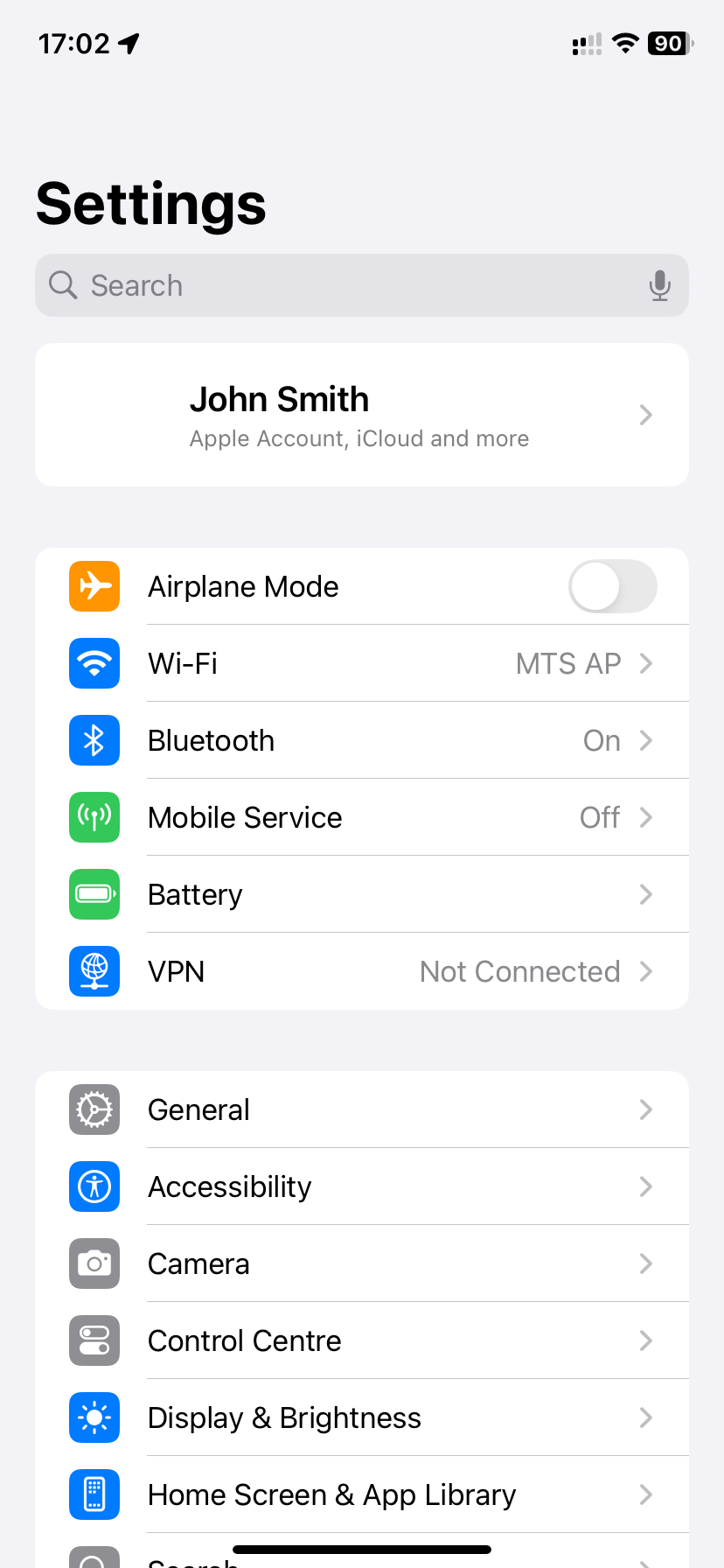
Go to Cellular (or Mobile Data, Mobile Service, etc., depending on your iOS version):
-
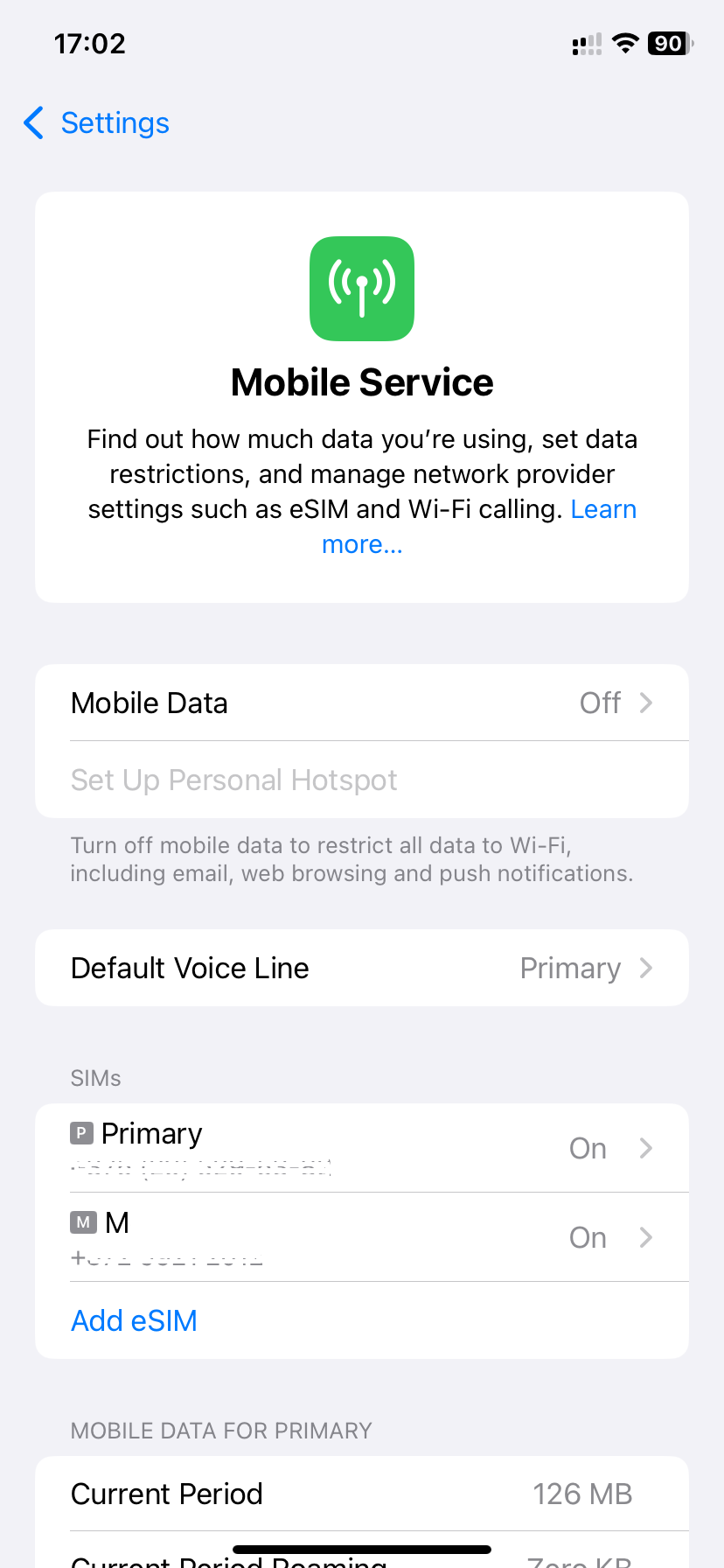
Tap Add Cellular Plan (or Add eSIM, depending on your iOS version):
-
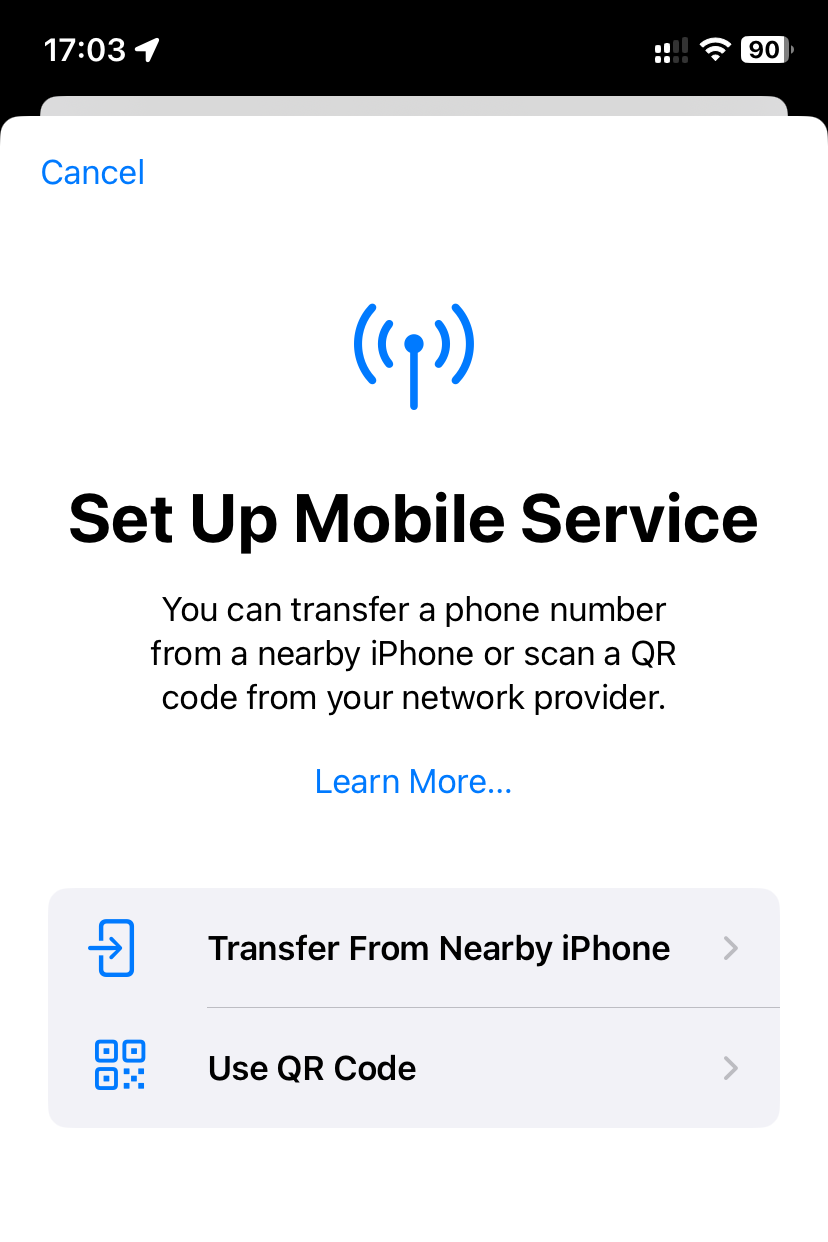
On the next screen, select Use QR Code:
-
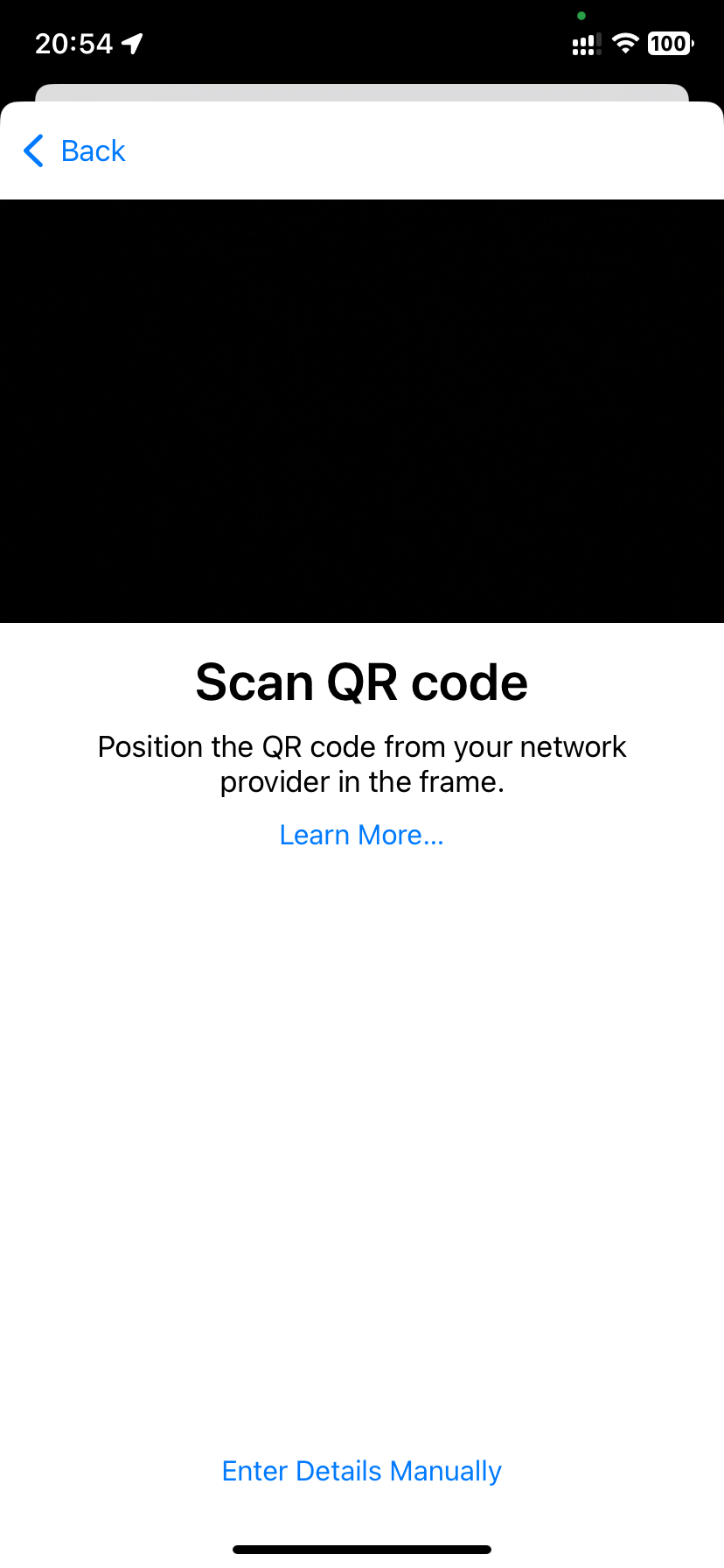
When the camera viewfinder appears, tap Enter Details Manually:
-
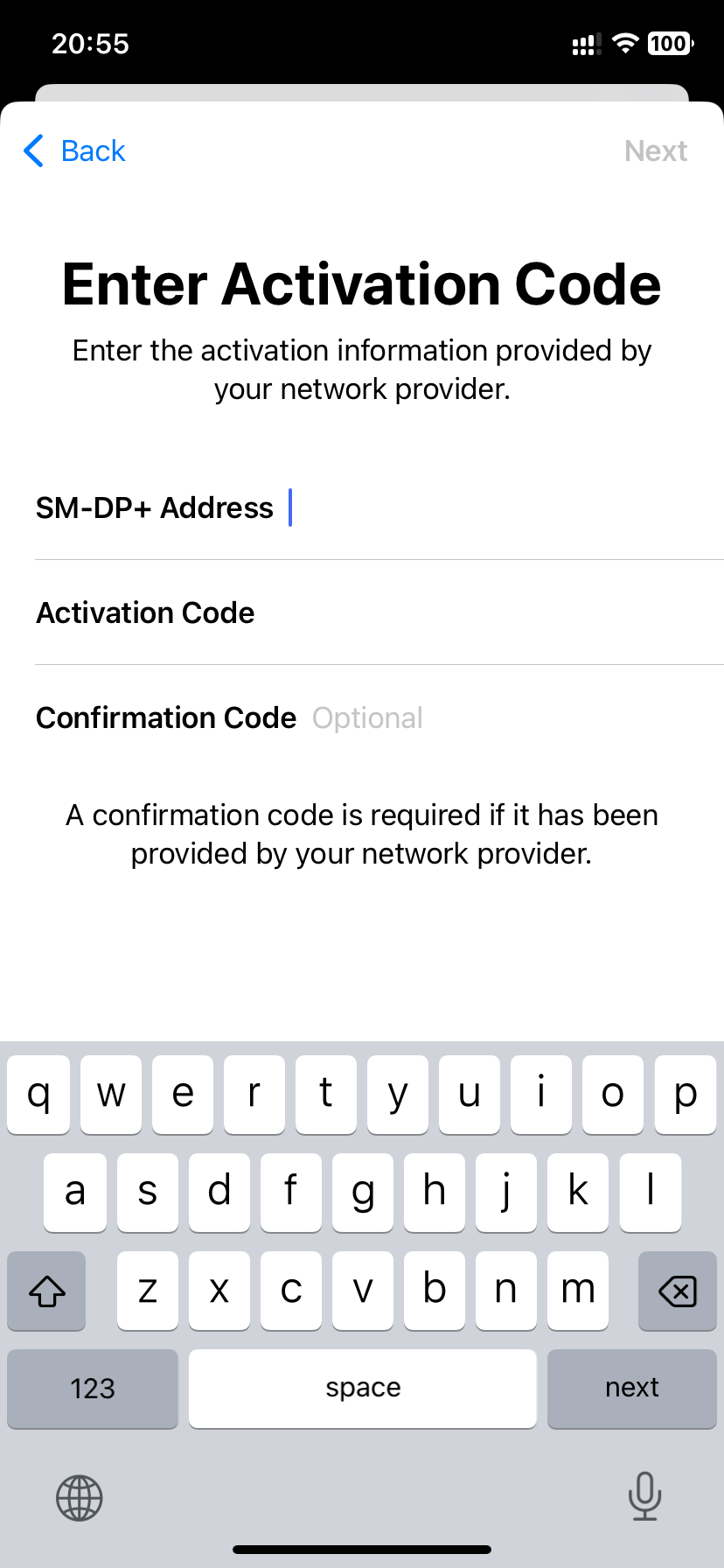
On the activation details screen, fill in the following fields:
• SM-DP+ Address (required)
• Activation Code (required)
• Confirmation Code (required if provided by your eSIM provider or carrier)
Then tap Next:
-
When prompted, tap Add Cellular Plan or Continue.
-
Wait for the eSIM profile to download to your iPhone. This usually takes just a few seconds.
-
If prompted, choose the active SIM card (for example, if you already have another physical or eSIM card installed).
-
Wait for your eSIM to register on your carrier’s network. This process may take anywhere from a few seconds to a few minutes.
Done!
Your eSIM has been activated — you can now use mobile network services.