 English
 Русский
Your Goal
Remove an eSIM profile from your iPhone (for example, to activate it on another device, replace it with a different eSIM, or prepare your iPhone for transfer to another user).
Environment
An iPhone with an eSIM profile installed.
Prerequisites
The eSIM profile you want to delete must not be locked by your mobile carrier.
Steps
-
Open the Settings app on your iPhone.
-
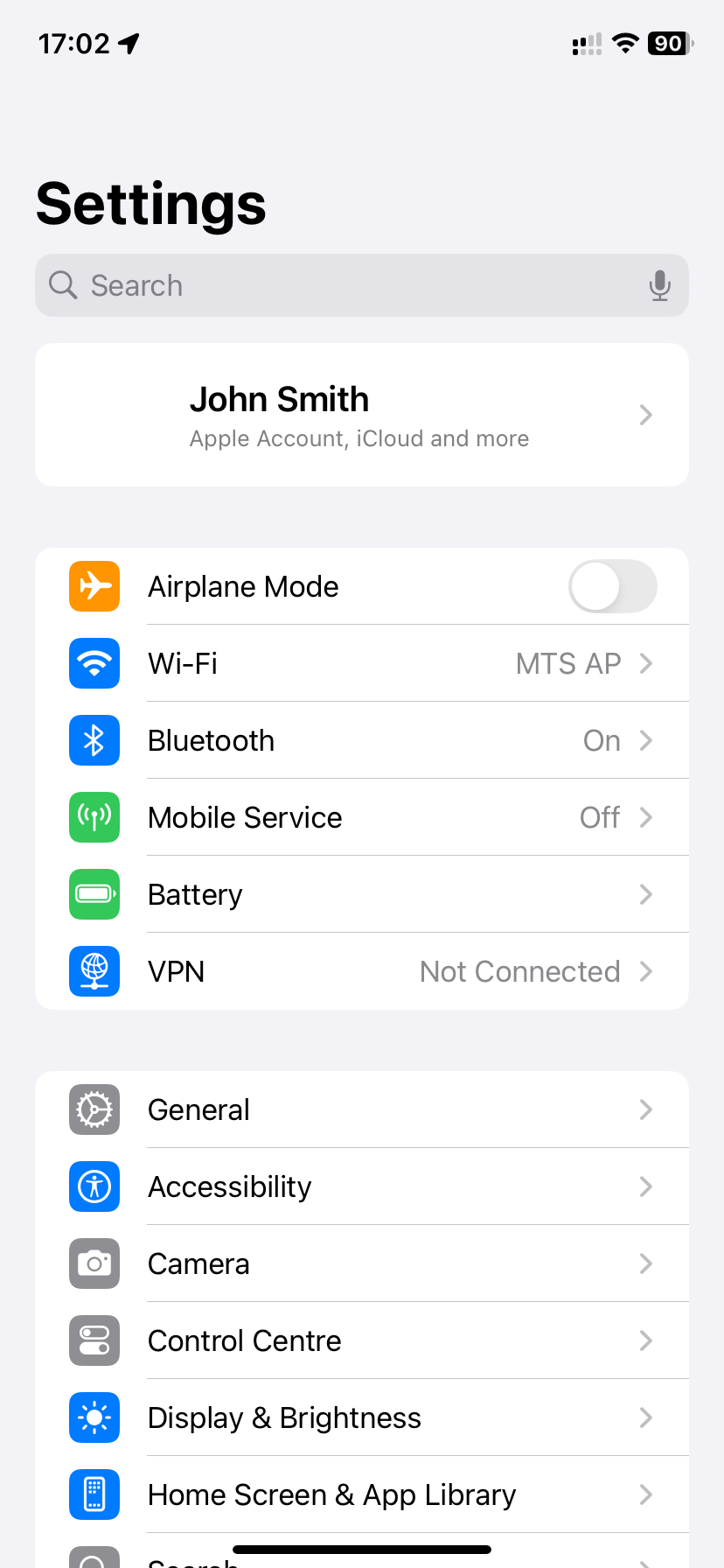
Go to Cellular (or Mobile Data, Mobile Service, etc., depending on your iOS version):
-
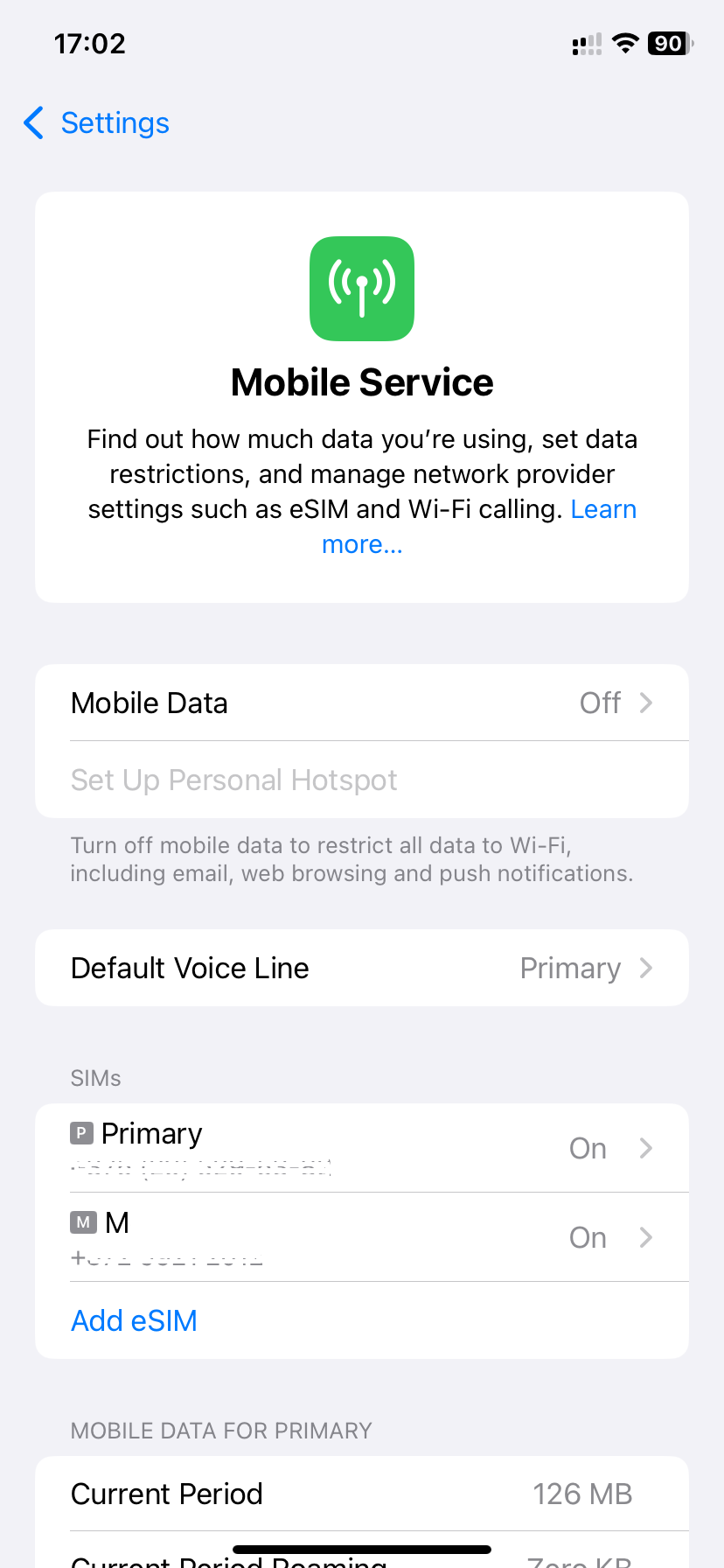
On the Cellular screen, select the SIM you want to remove:
-
Scroll down the page with your eSIM details and tap Delete eSIM at the bottom:
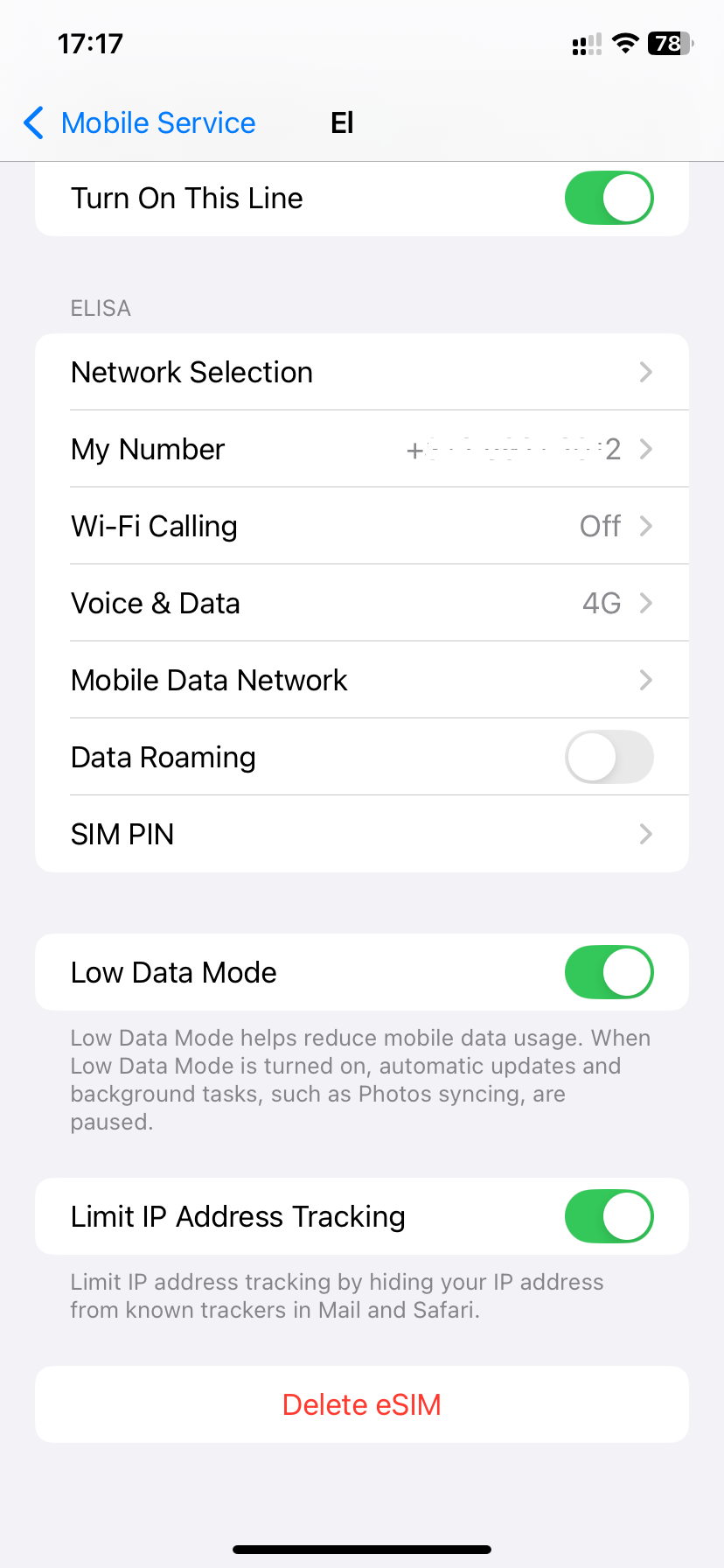
Be careful to select the correct SIM, so you don’t accidentally remove a profile you still need.
-
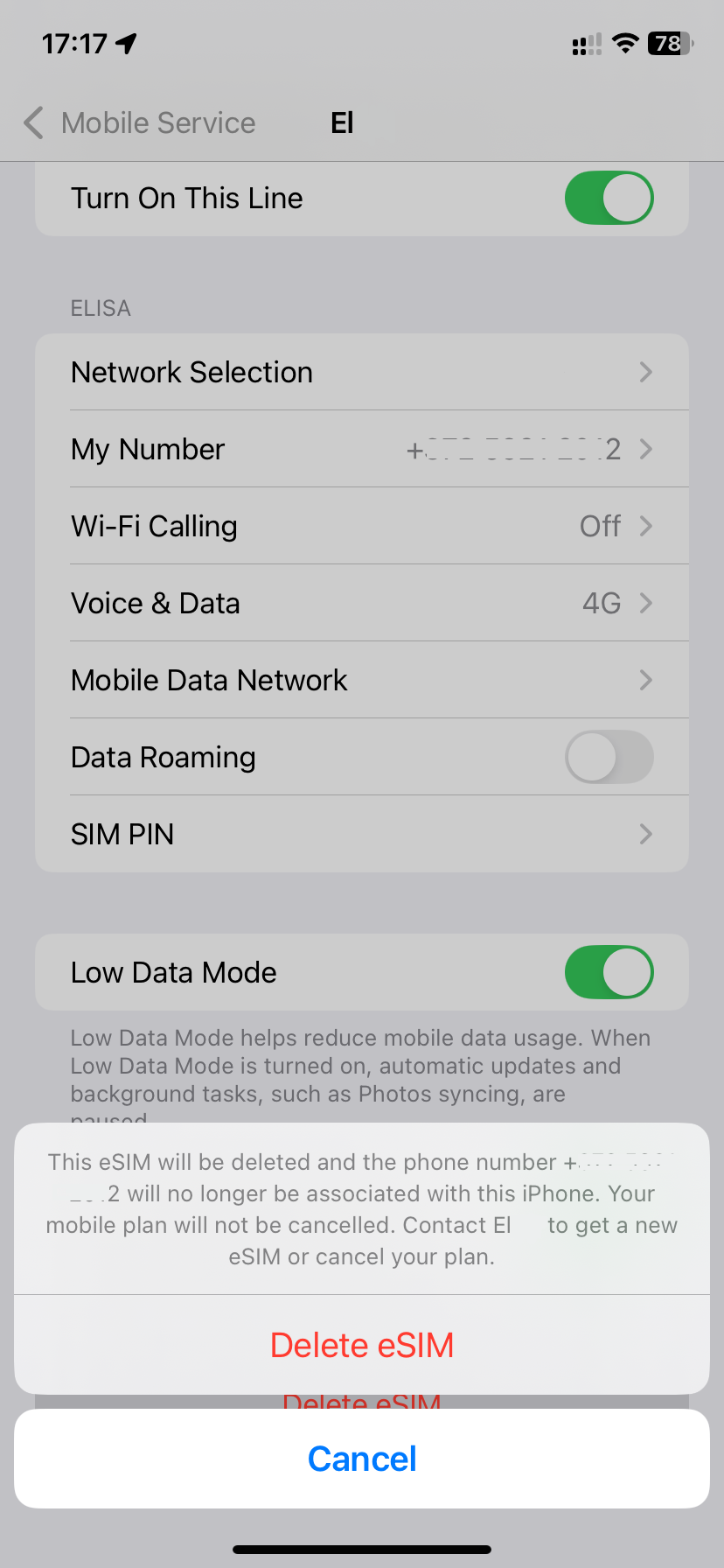
In the pop-up window, tap Delete eSIM again to confirm:
-
Wait for the eSIM profile to be removed — this usually takes a few seconds.
-
Make sure the deleted profile no longer appears in the SIM list on the Cellular screen.
Done!
The eSIM profile has been successfully removed.